
From Windows to Mac
How to Alt-Tab on a Mac
The quick answer
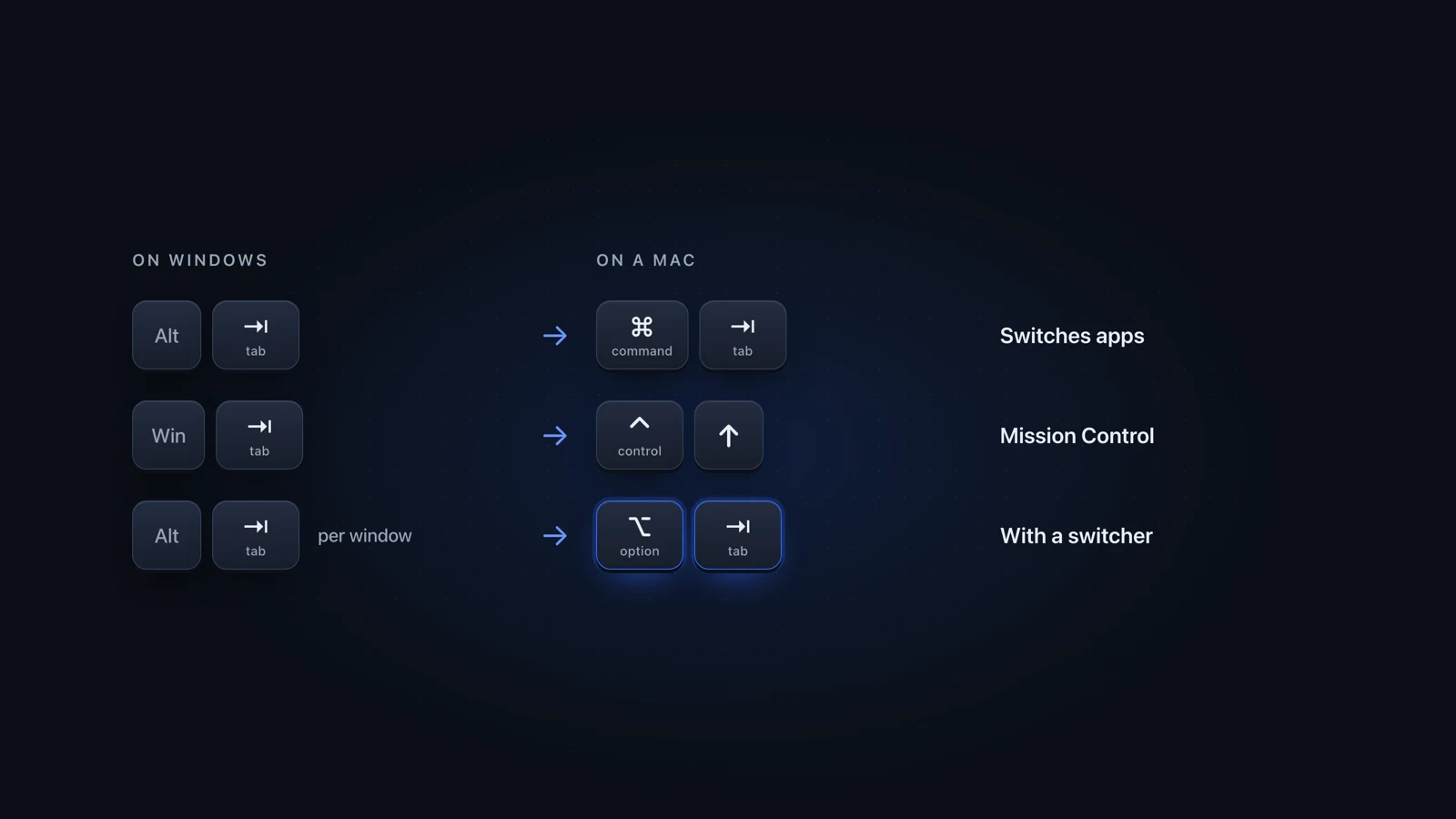
To Alt-Tab on a Mac, press Command-Tab. It switches apps, with one icon per app. Command-Backtick moves between the current app's windows, and Control-Up Arrow opens Mission Control, the Mac version of Task View. To Alt-Tab window by window, add a switcher such as AltTab, which is free and runs on Option-Tab.
Julien Schweter Updated 6 min read
The short version
- Most Ctrl shortcuts become Command: Command-C, Command-V, Command-Z.
- Command-Tab switches apps. Command-Backtick switches windows of one app.
- Task View is Mission Control, opened with Control-Up Arrow.
- On macOS Sequoia 15 and later, Fn-Control-Left Arrow tiles a window to the left half.
- To Alt-Tab by window, install a switcher that runs on Option-Tab.
Most have a Mac key in Apple's list of Mac keyboard shortcuts, but several behave differently. Windows here means the Windows logo key.
| Item | On a Mac | What is different |
|---|---|---|
| Alt-Tab | Command-Tab | Switches apps, not windows |
| Alt-Shift-Tab | Command-Shift-Tab | Moves back through the apps |
| Alt-Tab between windows of one app | Command-Backtick | Cycles windows without showing a list |
| Windows-Tab (Task View) | Control-Up Arrow | Mission Control, current desktop only |
| Windows-D (show desktop) | Fn-F11, or Command with the Mission Control key | none |
| Windows-M (minimize all) | Option-Command-M | Only the front app's windows |
| Windows-Down Arrow (minimize) | Command-M | The window goes to the Dock |
| Alt-F4 | Command-W closes the window, Command-Q quits the app | Closing and quitting differ |
| Windows-Ctrl-Left or Right Arrow | Control-Left Arrow or Control-Right Arrow | Desktops are called Spaces |
| Windows-Ctrl-D (new desktop) | Mission Control, then the add button in the Spaces bar | none |
| F11 (full screen) | Control-Command-F | none |
On macOS Sequoia 15 and later, the Mac snaps windows too. Apple calls it tiling, and the tiling shortcuts start with Fn-Control.
| Item | On a Mac | What is different |
|---|---|---|
| Windows-Left or Right Arrow | Fn-Control-Left Arrow or Fn-Control-Right Arrow | Fills the left or right half |
| Windows-Up Arrow (maximize) | Fn-Control-F | Called Fill; full screen is separate |
| Restore the old size | Fn-Control-R | none |
| Two windows side by side | Fn-Control-Shift-Left Arrow | Apple calls it Left & Right |
| Windows-Z (snap layouts) | Hold the pointer over the green button | Also under Window, Move & Resize |
| Drag to a screen edge | Drag to an edge or a corner | Hold Option to tile sooner |
Press Command where you would press Ctrl on Windows, with the same letter, as Apple's list of Mac keyboard shortcuts shows.
| Item | On a Mac | What is different |
|---|---|---|
| Ctrl-C, Ctrl-V, Ctrl-X, Ctrl-Z | Command-C, Command-V, Command-X, Command-Z | none |
| Ctrl-T, Ctrl-W (tabs) | Command-T, Command-W | none |
| Windows key (Start search) | Command-Space | Opens Spotlight |
| Ctrl-Alt-Delete | Option-Command-Escape | Force quits an app |
| Print Screen, Windows-Shift-S | Shift-Command-3, Shift-Command-4 | Whole screen, or a part |
| Backspace, Delete | Delete, Fn-Delete | Mac Delete is Backspace |
Command-Tab is an app switcher. Apple describes it as switching to the next most recently used app.
Every app gets one icon, even Chrome with four windows, and letting go brings up the window you used last. If you wanted a different one, you are in the right app and still looking.
- Press Q on an icon to quit that app, or H to hide it. Escape cancels.
- Down Arrow shows the selected app's windows so you can pick one.
More tricks are in how to get more out of Command-Tab, and every built-in way is in how to switch between windows on a Mac.
Instead of Windows key-Tab, Mac users press Control-Up Arrow or swipe up with three fingers. Mission Control opens with every window on the current desktop.
- Control-Down Arrow opens App Exposé: one app's windows, minimized ones included.
- Other desktops, which Apple calls Spaces, and full-screen apps are thumbnails in the Spaces bar.
- It shows one desktop at a time and leaves minimized windows in the Dock. There is no search.
If those limits bother you, see how Better Window Switcher compares with Mission Control.
To get Windows Alt-Tab on a Mac, one picture per window in every app, install a window switcher. AltTab and Better Window Switcher both run on Option-Tab, beside Command-Tab.
| Item | Previews | Browser tabs | Search |
|---|---|---|---|
| Command-Tab Built in, one icon per app | |||
| AltTab Free and open source | Pro tier | ||
| Better Window Switcher One-time purchase |
-
Download the switcher and move it to Applications
Better Window Switcher needs macOS 14 or later on Apple Silicon.
-
Grant the permissions it asks for
In System Settings, Privacy & Security, allow Accessibility (to focus windows) and Screen Recording (to show them).
-
Hold Option and tap Tab
Your windows appear. Tap Tab again to move, as with Alt-Tab.
-
Let go on the window you want
It comes to the front, even from another desktop.
AltTab is free and open source. It looks much like the Windows row of thumbnails and also shows minimized windows and other desktops. Search needs its paid Pro tier. Better Window Switcher vs AltTab covers the rest.
Questions people ask
What is the Alt-Tab equivalent on a Mac?
Command-Tab is the closest built-in Alt-Tab equivalent on a Mac. It switches apps, though, and lands on each app's last-used window. Command-backtick then moves between that app's windows. To go window by window across all your apps, install a switcher such as AltTab or Better Window Switcher.
What is the Windows Mission Control equivalent?
Task View, on Windows-Tab, is the Windows Mission Control equivalent. Both spread out your open windows and show your desktops. If you just made the switch from Windows to Mac and miss Task View, press Control-Up Arrow or swipe up with three fingers.
What is the Alt-F4 Mac shortcut?
There are two. Command-W closes the front window and Command-Q quits the app, since a Mac treats closing and quitting as separate commands. Option-Command-W closes every window of the front app. If an app stops responding, Option-Command-Escape opens Force Quit.
Can I use Alt-Tab on a Mac with a Windows keyboard?
Yes, with a switcher installed. On a PC keyboard, Alt acts as Option and Ctrl or the Windows key acts as Command, so Alt-Tab sends Option-Tab. That does nothing by itself. AltTab and Better Window Switcher both use Option-Tab, so with either one, Alt-Tab works as it did on Windows.
How do I snap windows on a Mac like on Windows?
On macOS Sequoia 15 and later, drag a window to the left or right edge of the screen, or press Fn-Control-Left Arrow or Fn-Control-Right Arrow. Fn-Control-F fills the screen and Fn-Control-R puts the window back. Hold the pointer over the green button for every layout.
Is there a free Alt-Tab Mac app?
Yes. AltTab is free and open source: press Option-Tab and a row of thumbnails appears, one per window, with minimized ones and other desktops included. Its search is in the paid Pro tier. Better Window Switcher is a one-time purchase after a 7-day free trial, with search included and cards for Chrome, Safari and Firefox tabs.
Checked on macOS Tahoe 26 and macOS 27, against Windows 11 shortcuts.
Read next
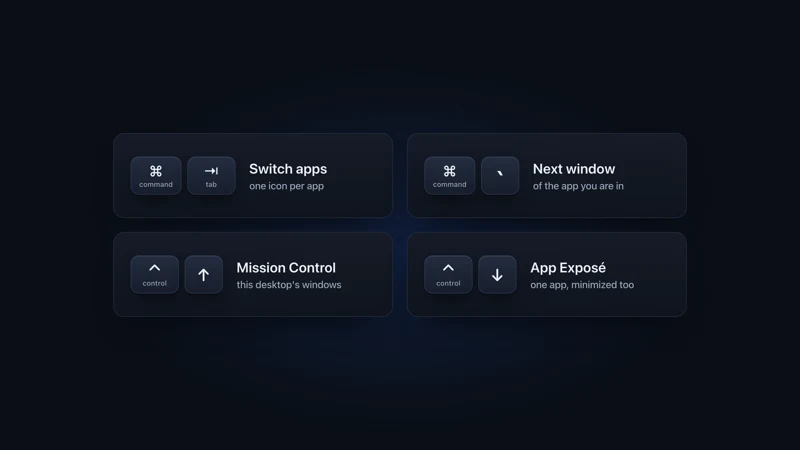 Windows on Mac Switch windows on a Mac Switch between windows on a Mac with Command-backtick, Mission Control or App Exposé: what each built-in shortcut shows, and what to add past a few windows.
 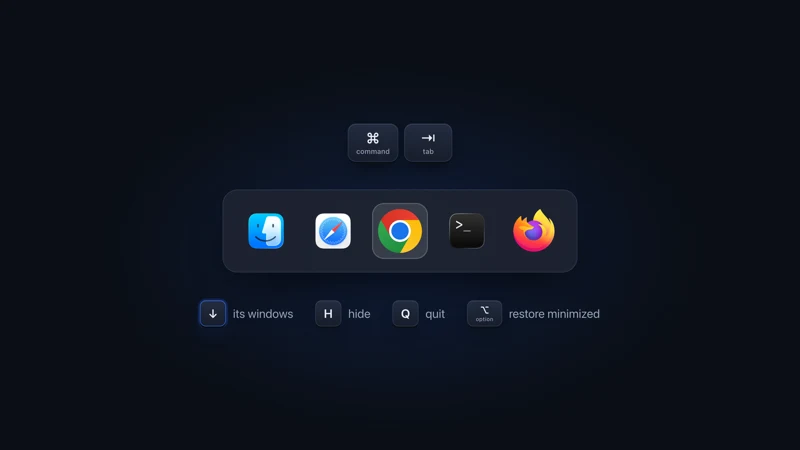 Mac app switching Get more out of Command-Tab Get a better Command-Tab on Mac: press Down Arrow for an app's windows, H to hide, Q to quit, fix desktop jumps, or add a switcher on Option-Tab.
 - Comparison vs AltTab A flat row of thumbnails vs a 3D scene you search in seconds.
- Comparison vs Mission Control A spatial overview you look at vs a switcher you aim.
More comparisons
Compare to other popular apps